Shajara page

Help

Short articles on using Shajara. If your question isn’t here, message me on Telegram.

First launch and “who am I” in the tree

On first launch Shajara asks you to choose a language — you can change it later in settings. Then it asks about you: the tree starts with you.

The person marked as “me” is the point of reference. Relationships on the cards (“father”, “sister-in-law”, “paternal side”) and the Dynasty screen are worked out from them. If you are building the tree for someone else, your father for example, pick them in settings under “Who am I?”.

Back to contents
Adding relatives

Tap the add-person button in the bottom right corner. At the top is “Adding to” — the person you are adding a relative to; switch them with “Someone else”. Then choose how the new person is related to them: “Father”, “Mother”, “Spouse”, “Child” or “Sibling”. Relatives already recorded are marked “Already recorded”.

Spouses. If the person already has a spouse and you add another, the app asks what happened to the earlier marriage: “Divorced” or “Both still stand”. The marriage status — married, divorced, widowed, partners not married — is changed on the person’s page.

Children from another marriage. When a parent has more than one spouse, the app asks “Who is the child’s other parent?” If they aren’t in the tree, pick “Someone else or unknown” — the child is recorded under this parent only.

Back to contents
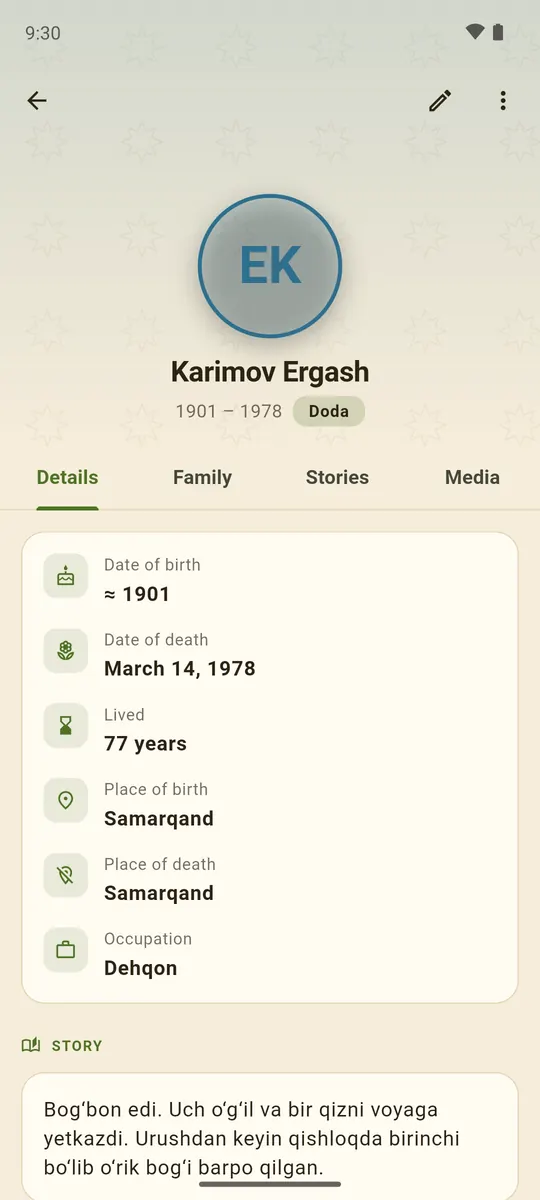
A person’s page

Reading the tree

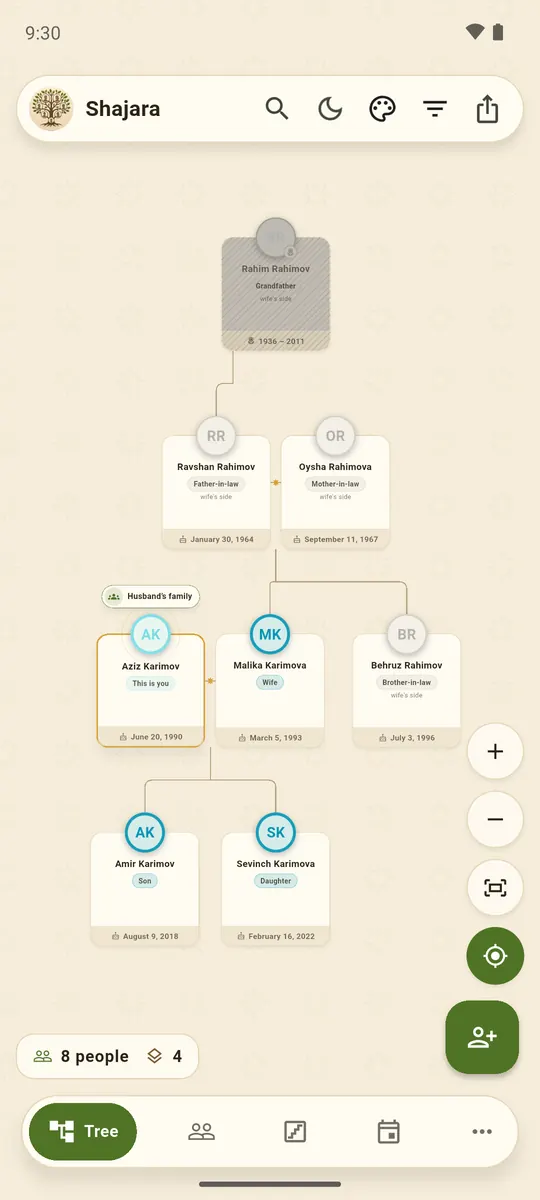
The label under a name says how the person is related to you; the small line adds the side: “paternal side”, “wife’s side”. The deceased are dimmed.

Filters: “Ancestors”, “Descendants”, “Whole tree” and “My relatives”. Colouring: by closeness of kinship, by gender, by surname or by generation.

Wife’s family. Your spouse’s relatives fold into a “Wife’s family” (or “Husband’s family”) card — tap it to open. Former spouses fold away the same way: “Former wife”, “Former husband”.

Search. Type a name or surname into “Search the tree” and the matches light up on the canvas. “Back to me” returns to your card; “Fit to screen” shows the whole tree.

Back to contents
The “Wife’s family” card opened

Dynasty: seven generations

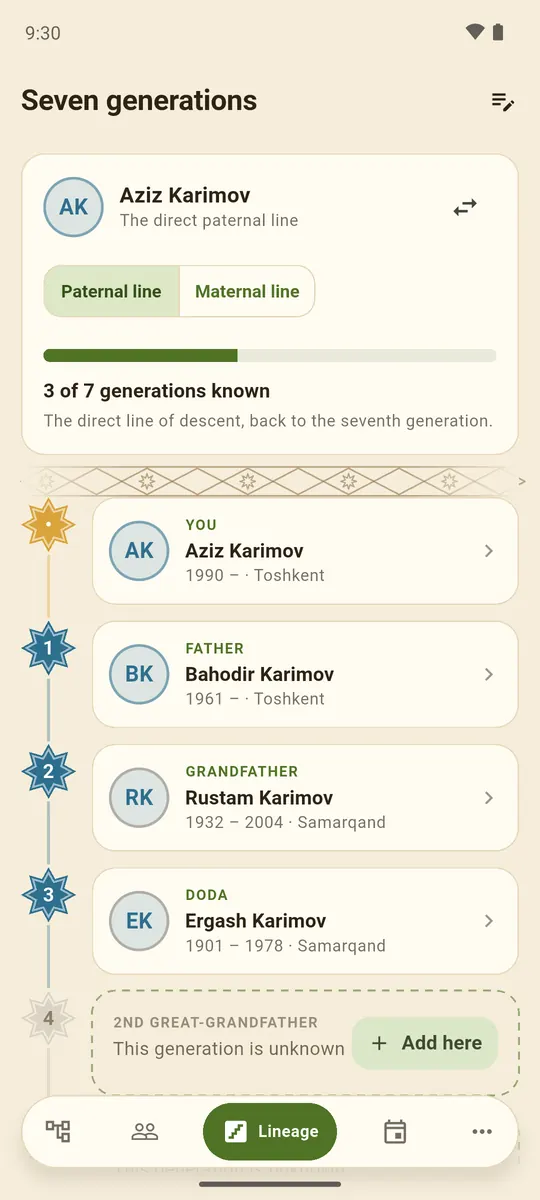
The Dynasty screen shows the direct line up from you — through your father or your mother. You can see how many generations are known; an unknown one is marked, and the “Add here” button sits exactly on the first gap.

Generation names can be swapped for the words your family uses — “Doda” instead of “great-grandfather”, say: in settings under “Generation names”.

Back to contents
The Dynasty screen

Poster and family book

Open “Export & share”.

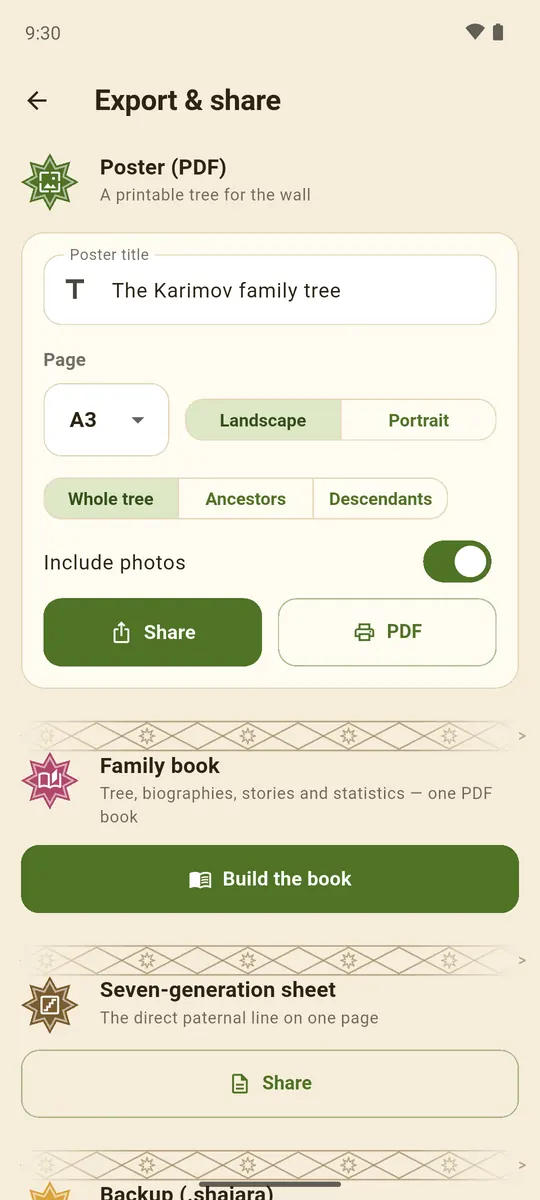
  • Poster (PDF) — the tree with Uzbek ornament for the wall: A4, A3 or A2, landscape or portrait, with or without photos, with your own title.
  • Dynasty sheet — the direct line on a single page.
  • Family book — a PDF with a title page, contents, the tree, biographies with photos, stories, statistics and a map of places.

Save the file or send it through the system share sheet. A3 and A2 are easier to print at a print shop.

Back to contents
Export: poster and family book

Copies of the tree and moving to a new phone

Shajara takes a copy of the tree every time it opens and keeps the last eight — in settings, “Data” → “Copies of the tree”. If something goes wrong, pick a copy and tap “Restore”; before replacing anything the app saves the current state too.

These copies live on the same phone. To move the tree to a new one, open “Export & share” → “Backup (.shajara)” and save the file or send it to yourself. On the new phone install Shajara, open “Import from file” and choose “Replace everything”.

Back to contents

Sharing a .shajara file

Send relatives the “Backup (.shajara)” file — it holds the people, stories and photos. The recipient opens “Import from file” and picks how:

  • “Merge into current tree” — new people are added, theirs are kept;
  • “Replace everything” — their tree is deleted and replaced with yours.

After a merge, the data check finds anyone recorded twice.

Back to contents

Birthday reminders

Turn reminders on under “Birthday reminders”: choose when to remind — ahead of time or “On the day” — and the time of day. In “Who to remind about”, tick the people you want.

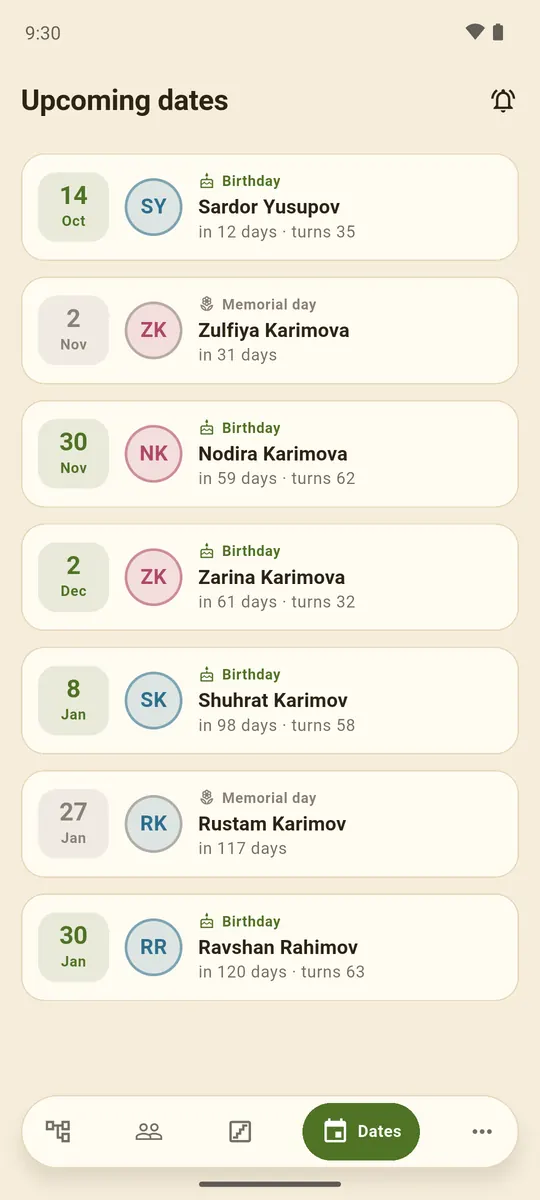
Reminders come only for living relatives with a known birth day and month. If Android hasn’t granted the notification permission, allow it in the phone’s settings. Memorial days for those who have passed are on the “Dates” screen.

Back to contents
Upcoming birthdays and memorial days

Erasing all data

Delete a single person, photo, recording or story on their page. To wipe the whole tree: settings → “Data” → “Erase all data”. This can’t be undone — save a backup first.

Uninstalling the app also removes all of its data. The developer holds none of your data, so there is no deletion request to send.

Back to contents
Get Shajara on Google Play